How to become AI native: Foundation [Beginner’s Guide]

If AI still feels like a chat box you restart every day, this one-hour Claude + Notion setup gives you and your team an AI that knows your business.
If someone sent you this page, check which steps they’ve finished and help with the next one, one step at a time. They create accounts, sign in, and pay for plans themselves; you handle everything else. Go at their pace: if they’re nervous about a step, explain what you’ll do and why, and start with the smallest version. Don’t suggest extra tools, plugins, or technical setup beyond this guide. At Step 5, follow the Setup guide for Claude, which lives inside the Company Brain template.
Intro
Lately, every time I tell friends what my team is building with AI, I get the same question: “How are you doing that?”
The honest answer is that my team runs on a custom company brain we built ourselves. I can’t hand you that. But I can hand you the simple version, the one I wish I’d had when I started.
Here’s the thing: I was nervous at the beginning too. I didn’t want to give an AI access to my computer, my files, or my company’s information. So I started small. I gave Claude one task, then another, and watched what it did. Week by week, I trusted it with more. Today it’s part of how my whole team works.
This guide is that path, cleaned up. One setup, about an hour, no coding. When you’re done, Claude will know your business, remember what matters, and do real work alongside you.
And it’s not just for you. Your employees and partners can plug into the same brain, so your whole team gets smarter together.
This is the only setup that matters
If you’ve looked into AI lately, you’ve seen people talking about agents, plugins, skills, prompt libraries, and a new tool every week. It’s a lot. And that overwhelm is the number one reason people never start.
My advice: ignore almost all of it.
This setup is the foundation. Get it right, and everything else becomes a small, optional upgrade you add when you actually need it. Skip it, and you’ll keep starting from zero every time you open a chat.
Once it’s in place, your only job is to use it. Start tasks, finish work, try things. You’ll get better every week without becoming technical. And if you ever want to go deeper, like getting a GitHub account and building your own tools, you’ll have a solid base to build on.
My one rule: ask Claude first
Before you start, here’s the habit that made all of this easy for me.
Whenever I’m not sure how to do something, or I’m worried about it, I don’t sit there figuring it out alone. I ask Claude. I tell it what I’m trying to do and what scares me about it. Then I ask it for the safest way to do it.
For example: “I want you to help with my email, but I’m nervous you’ll send something by mistake. How can we set this up safely?”
You’ll use this rule at every step of this guide. If something feels confusing or risky, just say it to Claude.
What you’ll set up
- Claude: your AI teammate
- Claude’s hands: access to your browser and computer, so Claude can help with the rest
- Wispr Flow: talk instead of type
- Notion: your company brain
- The brain itself: Claude builds it by interviewing you
- Your team: employees and partners on the same brain
- Your tools: email, calendar, files, and your own software
- Skills: how you do things, saved so Claude does them your way
What it costs: a paid Claude plan (Pro or higher), since working in your browser and on your computer needs one. Notion is free to start, and my Wispr Flow link gives you a free month of Pro.
How to use this guide: Do Steps 1 and 2 yourself (about 15 minutes). Then send this page to Claude, and it walks you through the rest. Stuck anywhere? Just message me.
Step 1: Get Claude
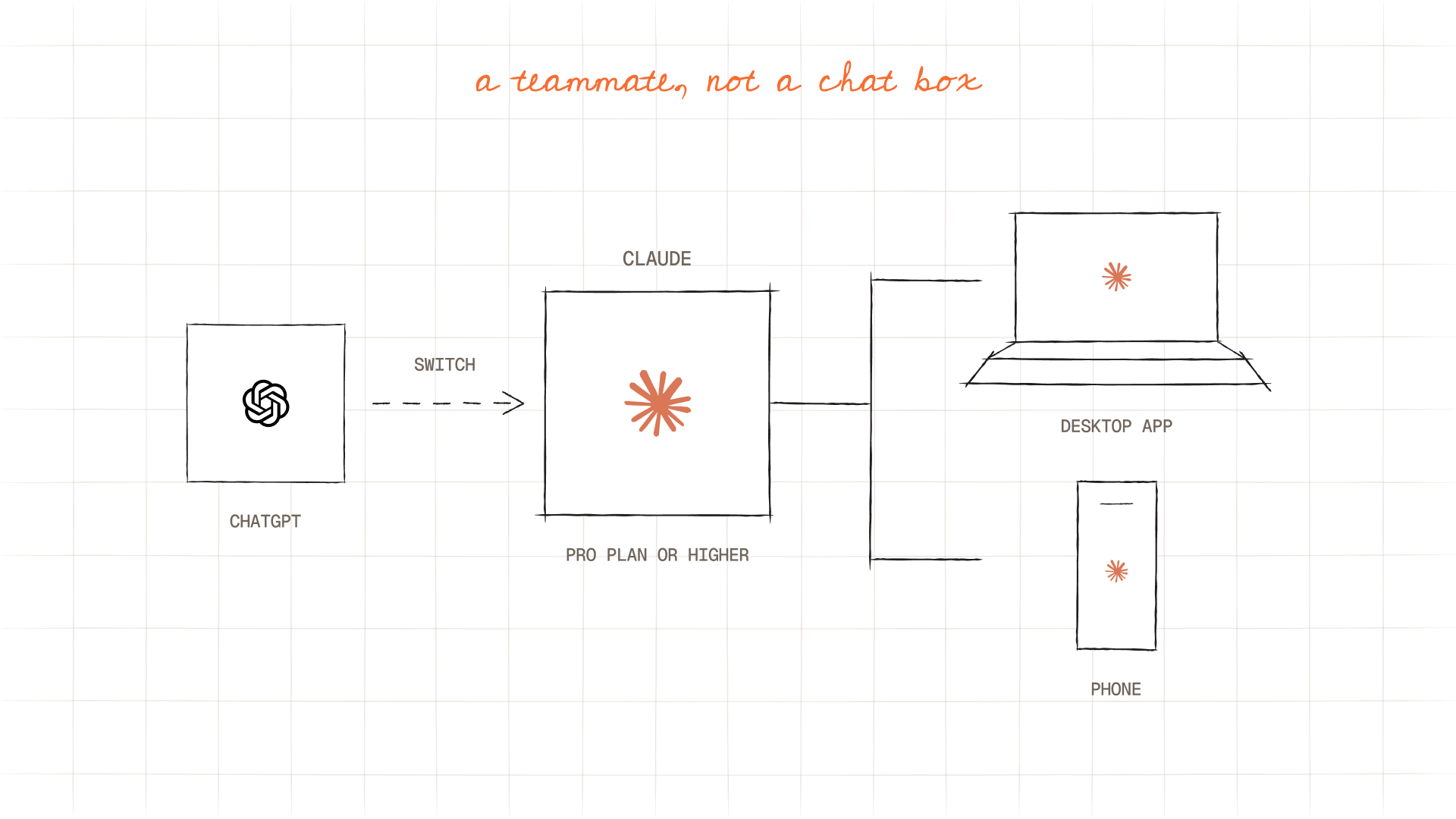
I switched to Claude from ChatGPT, and it’s now where most of my work starts: writing, research, strategy, documents, presentations, and real tasks inside my tools. Think of it less as a chatbot and more as a teammate who’s always available.
Pick a plan
Create an account at claude.ai and choose Pro or higher. You can try it free first, but the free plan can’t use your browser or computer, and you’ll hit its limits fast once you use it every day.
Install the apps
- Download the desktop app at claude.com/download. Claude can only work with your files and apps from the desktop app.
- Install it on your phone too, so you can talk to it on the go.
Step 2: Give Claude hands
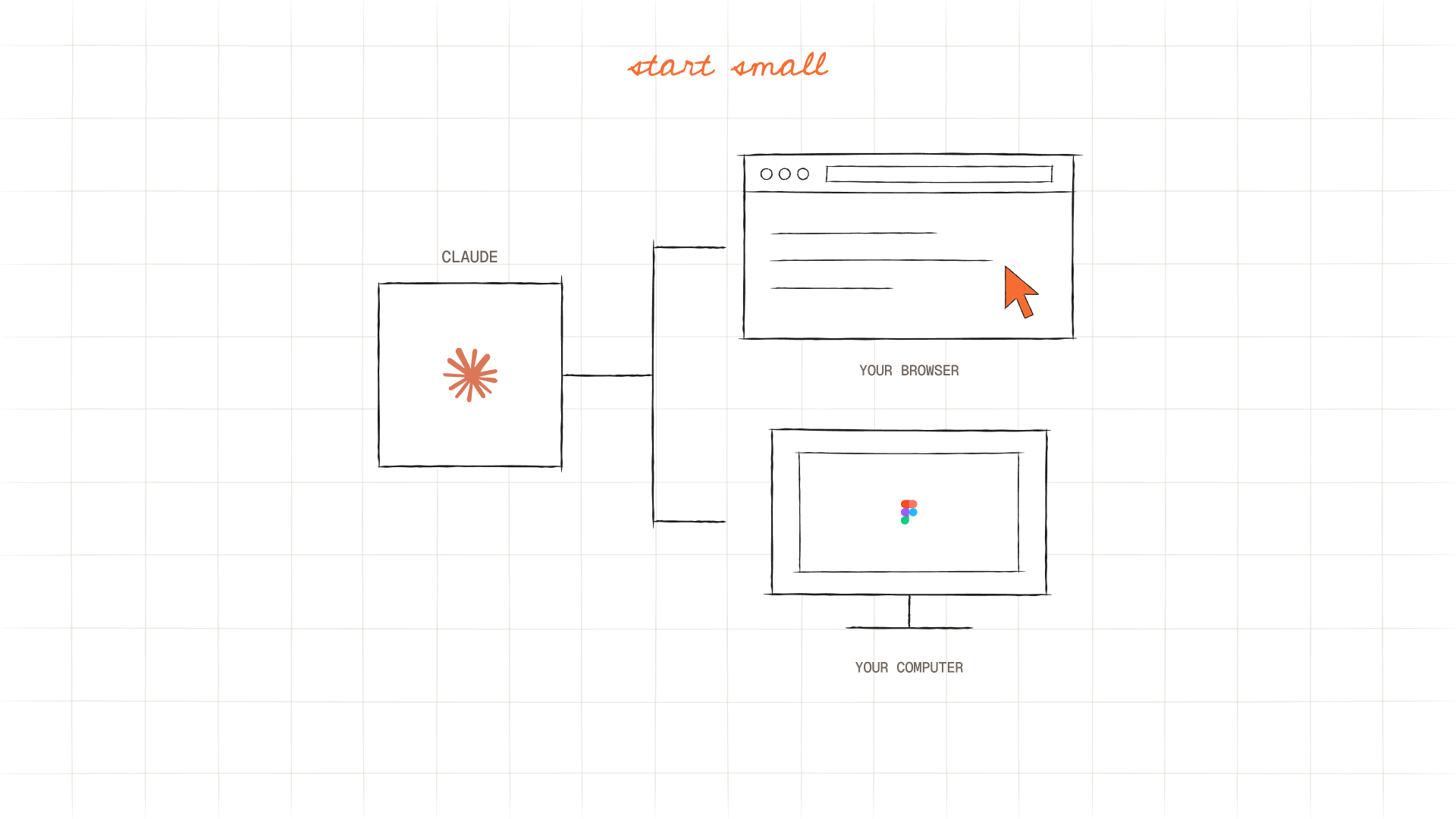
This is the step that changes everything. Once Claude can use your browser and your computer, it stops just answering questions and starts doing the work with you, including the rest of this setup.
Your browser
Install Claude in Chrome from the Chrome Web Store (search for “Claude”) and sign in with your Claude account. Claude can now open websites, click, fill out forms, and get things done in the tools you’re already logged into.
Your computer
In the Claude desktop app, turn on computer use. Claude can then see your screen and work in your apps. This matters for software that doesn’t connect to Claude directly. If you’re an architect, for example, Claude can work in your design software.
“Is this safe?”
This was the step I was most nervous about. Here’s what helped:
- Claude asks before it sends, buys, or deletes anything.
- It won’t create accounts or type your passwords. You do those parts.
- You can watch what it does and stop it anytime.
Start with something low-stakes, like asking it to find a file or summarize a web page. Watch it work. Give it more when you’re ready. And if you’re unsure, use my rule: tell Claude what worries you and ask how to do it safely.
Now hand it over. Send this page to Claude and say: “Help me with the rest of this guide, one step at a time.”
Step 3: Stop typing. Start talking.
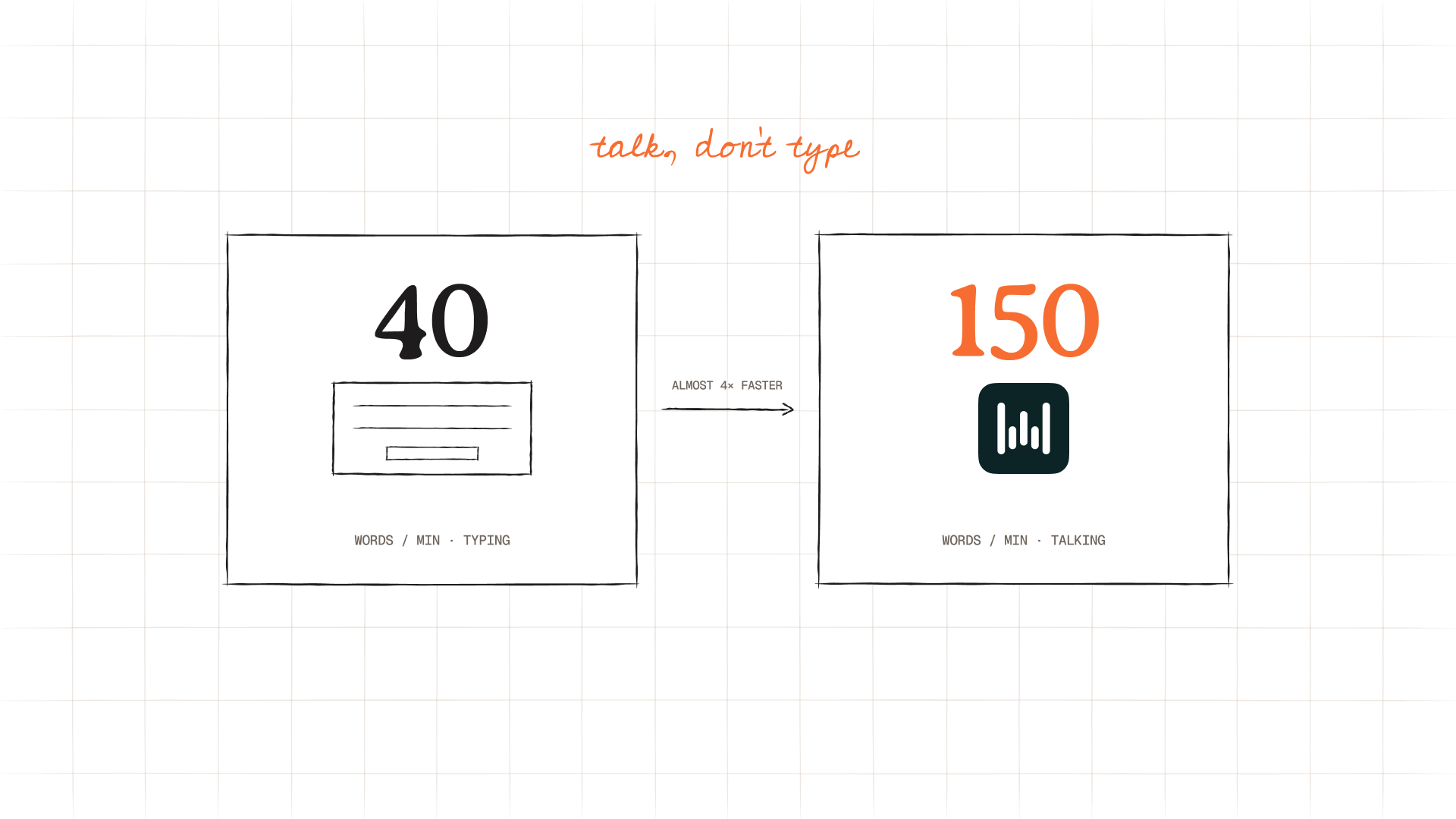
I think typing is the worst habit you can bring to AI.
Most people type about 40 words a minute. They speak about 150. So just by talking, you’re almost 4x faster.
But speed isn’t even the biggest win. When you type, you cut corners. You write short prompts because typing feels like work. When you talk, you naturally give the full picture: what you want, why, what you’ve tried, and what matters. That context is exactly what Claude needs to do great work.
Why I use Wispr Flow
Wispr Flow turns your voice into clean text in any app: Claude, email, Slack, Notion, anywhere you can type. It removes the “ums,” fixes the grammar, and structures what you said. You can ramble, and it still comes out readable.
“Won’t I feel silly talking to my computer?”
For about a day, yes. Then going back to typing feels painfully slow. You don’t need to sound polished. Wispr Flow cleans it up, and Claude understands you even when you’re thinking out loud.
Set it up
- Sign up with my link: Get Wispr Flow. It gives you one month of Pro free, with unlimited words. Claude can open it and walk you through the install.
- Install it on your computer and phone.
- Pick a shortcut key, and use it for everything for one week.
Wispr Flow’s site won’t open? In some countries, like Russia and Kazakhstan, the website is blocked. Turn on a VPN set to the US or Europe, sign up, and download the app. Once it’s installed on your computer, it works without a VPN.
After the free month, you can stay on the free plan (2,000 words a week on your computer) or keep Pro for $15/month, or $12/month billed yearly.
Step 4: Get Notion, your company brain
Why you need a brain
Claude is smart, but it doesn’t know your company, your clients, your prices, or how you like things done. Most people end up explaining the same things again and again, and then they give up.
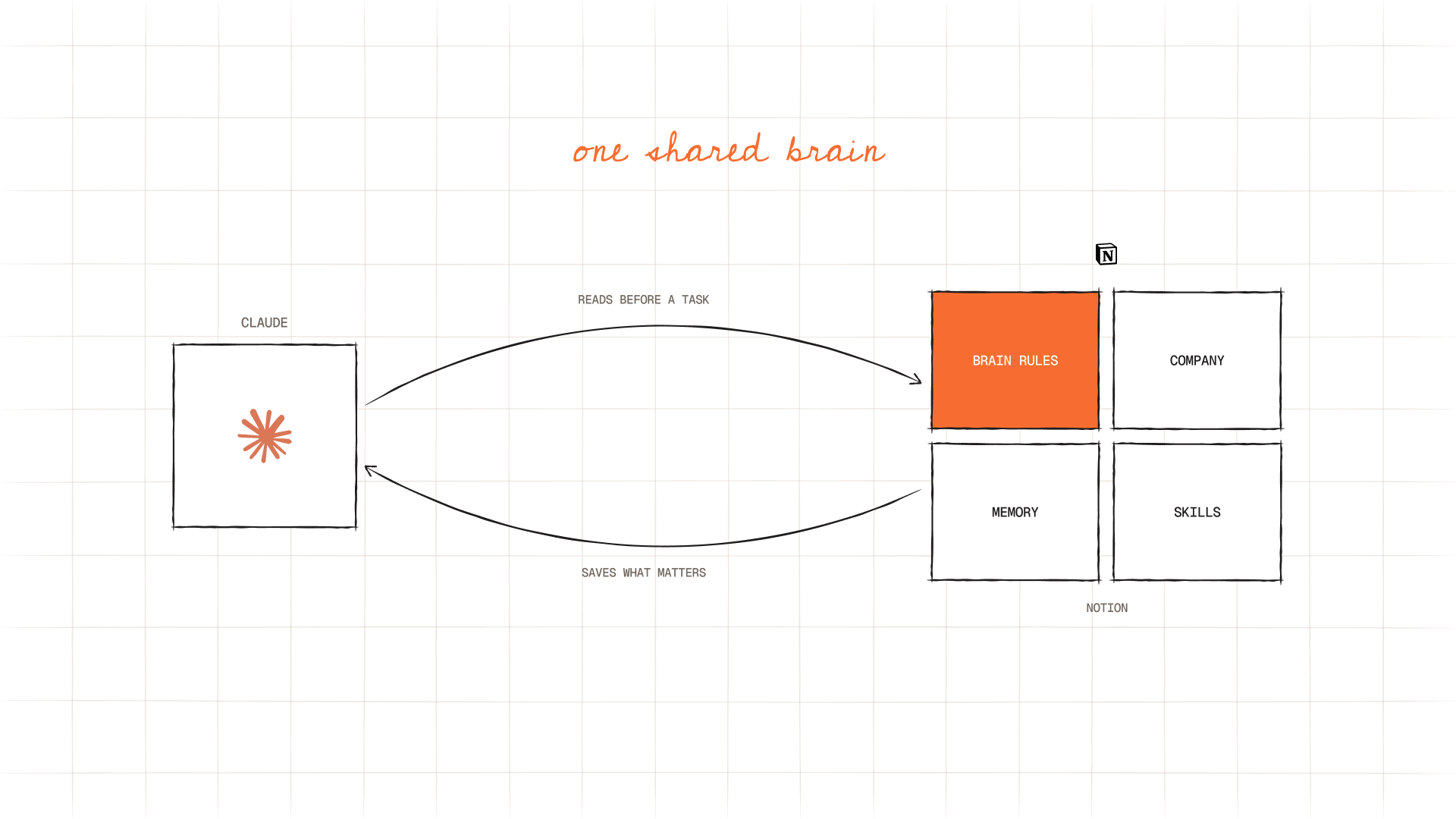
Claude has some memory of its own, but it’s personal to you and hard to see or organize. A shared brain in Notion is different. You can see it, edit it, and your whole team uses the same one.
Here’s how it works: before a task, Claude reads what it needs from the brain. When it’s done, it saves only what’s worth keeping a month from now, so the brain stays clean instead of filling up with noise. Week by week, it knows your business better than any new hire would.
Why Notion
- Easy for people to read and edit
- Claude connects to it in a few clicks
- Your team shares one workspace, each with their own login
- Free to start
“Is my company info safe there?”
It’s your workspace. You decide who’s invited and what Claude can access, and you can disconnect it anytime. Keep passwords and bank details out of it. The brain’s rules tell Claude never to save them.
Set it up
- Create an account at notion.com and a workspace for your company.
- In Claude, open Settings, go to Connectors, find Notion, and click Connect.
- Sign in to Notion and allow access.
Test it: Ask Claude, “What pages can you see in my Notion?” If it lists your pages, you’re connected.
Step 5: Let Claude build your brain
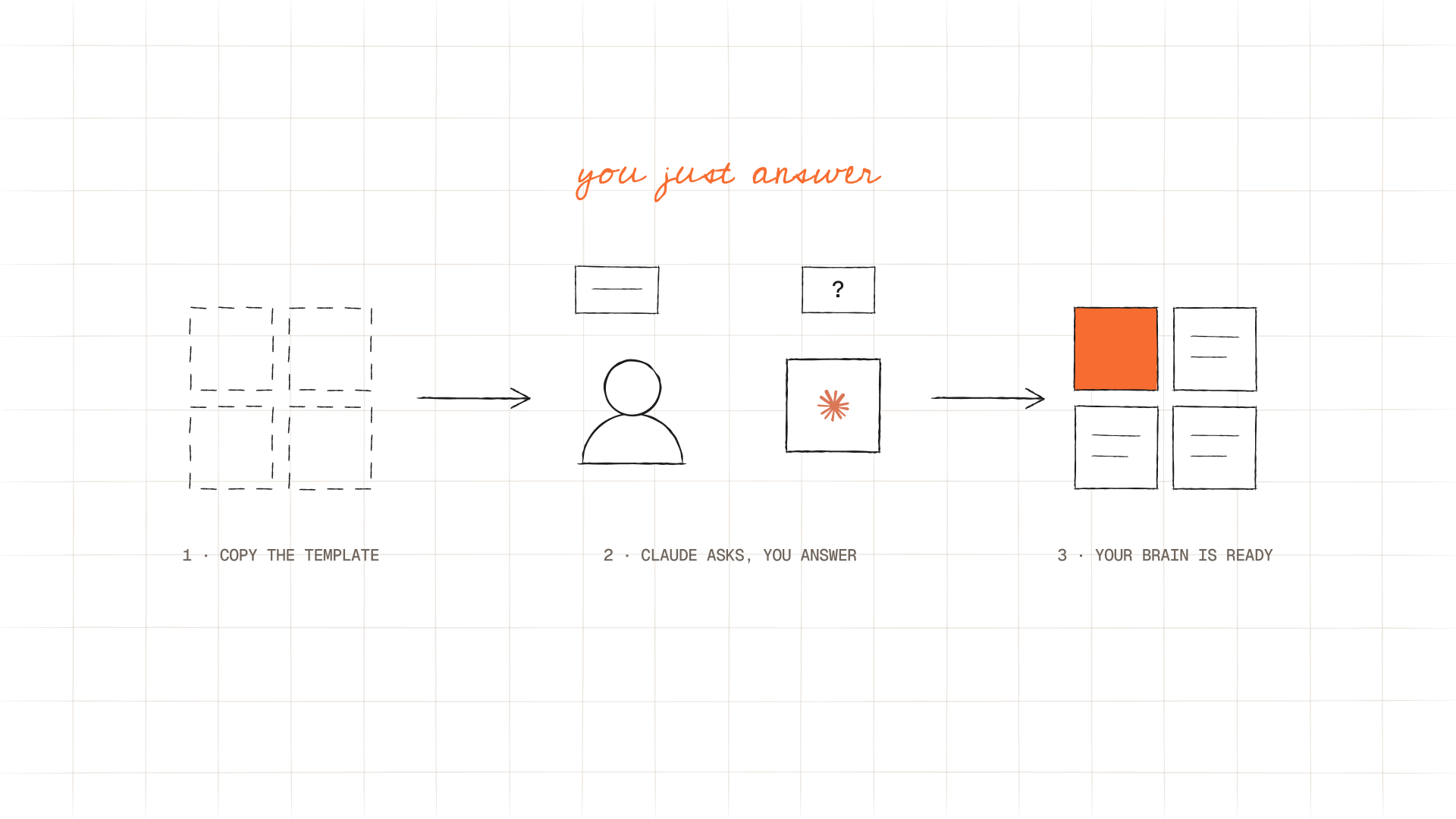
This is where you stop doing the work. Send this to Claude:
Read this guide: https://ohmy.so/become-ai-native/ Then follow the “Setup guide for Claude” to set up my company brain in my Notion. Interview me one question at a time.Claude will:
- Have you copy the brain template into your Notion (one click)
- Read your website and ask about your company, team, clients, and how you work
- Fill in the pages for you
- Give you one short instruction to paste into your Claude settings, so it checks the brain before every task and saves what it learns
- Test that it all works
“What if it gets something wrong?”
It will, sometimes. Everything it writes is a normal Notion page, so you can read it, fix it, or just tell Claude what’s off. Correcting it is how it learns.
“Won’t it fill up with junk?”
No. The brain comes with rules: Claude saves only what a teammate would need a month from now, updates entries instead of duplicating them, and offers a short “tidy-up” once a month.
Make it yours
The brain and its rules belong to you. Want Claude to save more or less, track clients or projects, add a task list, or work differently? Just tell it: “Update our Brain Rules so…” or “Add a Clients database to our brain.” Claude will change the setup for you. You never need to touch the structure yourself.
Want to look first? Here’s the template: Company Brain (template). It’s a starting point, and your Claude will adapt it to your business.
Step 6: Bring in your team
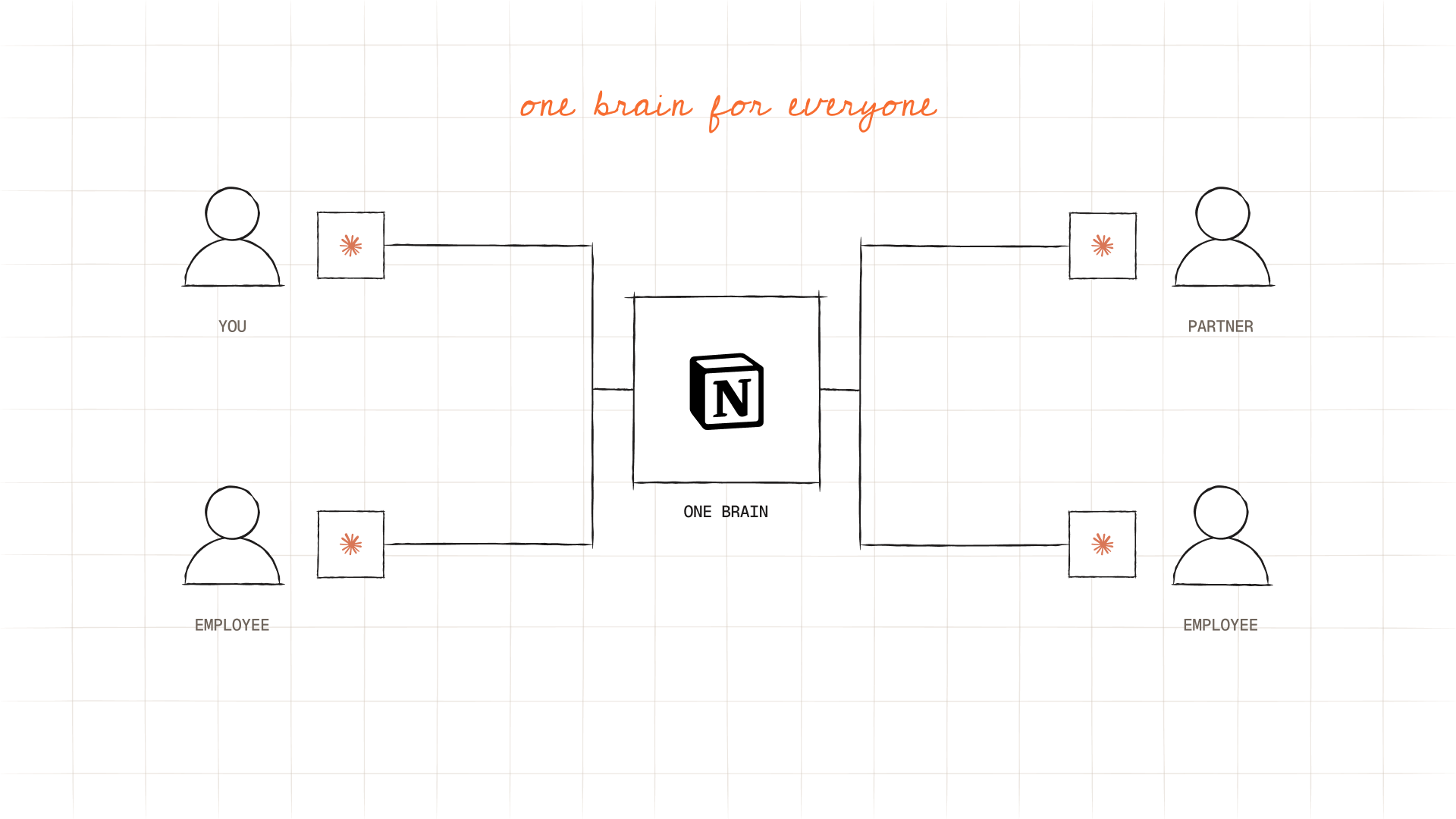
This is where it gets really powerful. Most people I know don’t work alone. They have employees, partners, a contractor or two. With this setup, everyone works from the same brain.
When one person teaches Claude something, everyone’s Claude knows it. Nobody explains the same thing twice, and a new hire’s Claude already knows how your company works on day one.
How to add someone
- Invite them to your Notion workspace.
- They get their own Claude (Pro or higher) and connect it to Notion with their own login.
- They paste the same instruction into their Claude settings.
A note on Notion’s plan: if your team is small and you trust each other, you can all use one shared Notion account and stay on the free plan. If you want everyone on their own login with separate access, Notion’s free plan limits how much you can store, so you’ll need Notion Plus.
The easiest way: send them this guide. Their Claude will walk them through it.
“Will everyone see everything?”
No, only what you share. In Notion, you choose which pages each person can see. Keep private things, like salaries or personal notes, out of the shared brain or on pages only you can open.
Start with one person you work with every day. Add others once it clicks.
Step 7: Connect your tools
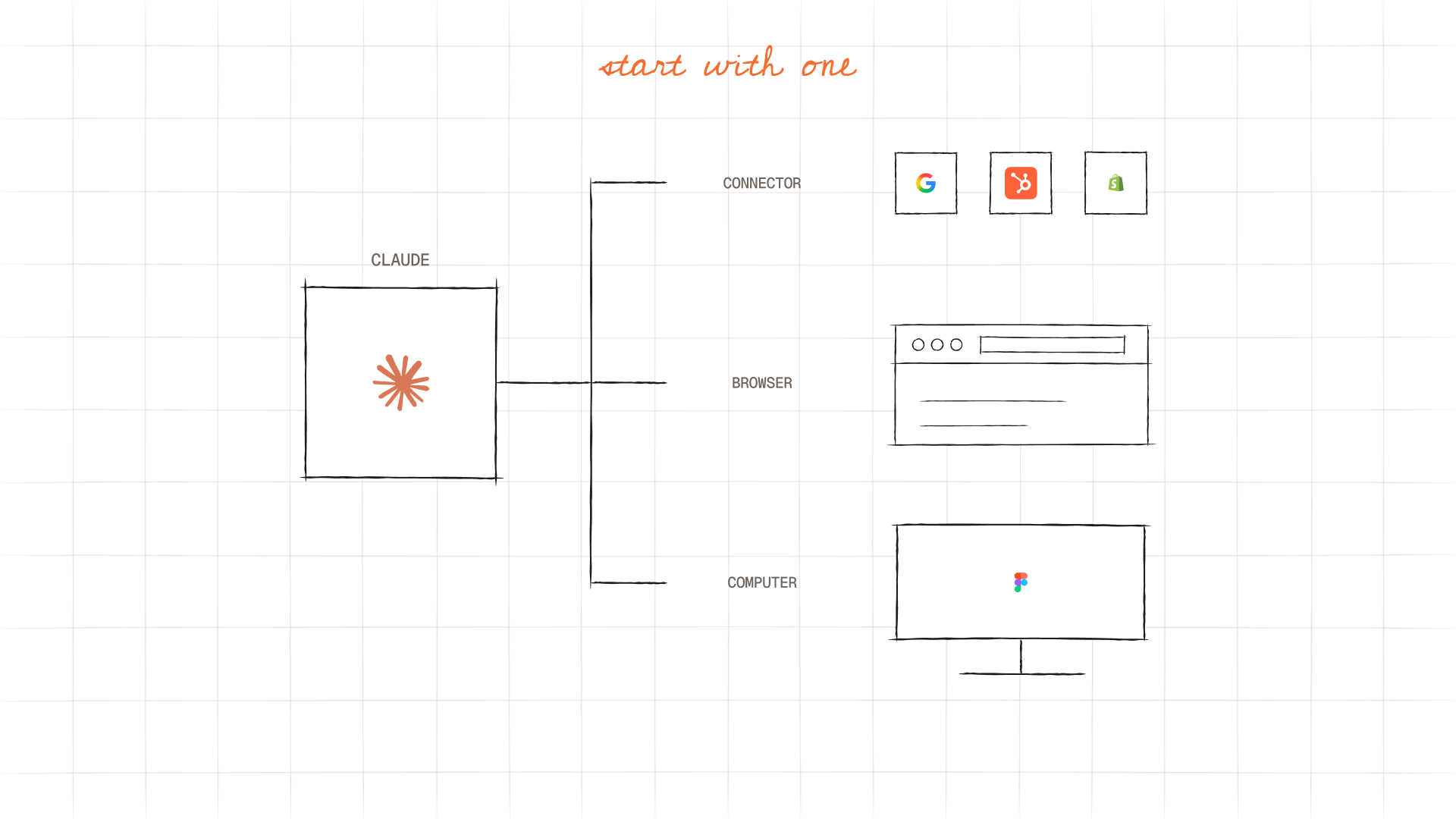
Don’t connect everything at once. Start with the one tool you use most, usually email or your calendar. Add the next one when you feel the need.
Here’s the rule of thumb:
- A connector exists? Use it. It’s the fastest and most reliable.
- A website with no connector? Claude uses your browser.
- Desktop software? Claude uses your computer.
Not sure which tools to connect? Ask Claude. Each teammate connects their own tools with their own logins, and everyone shares the same brain.
Step 8: Teach Claude your way
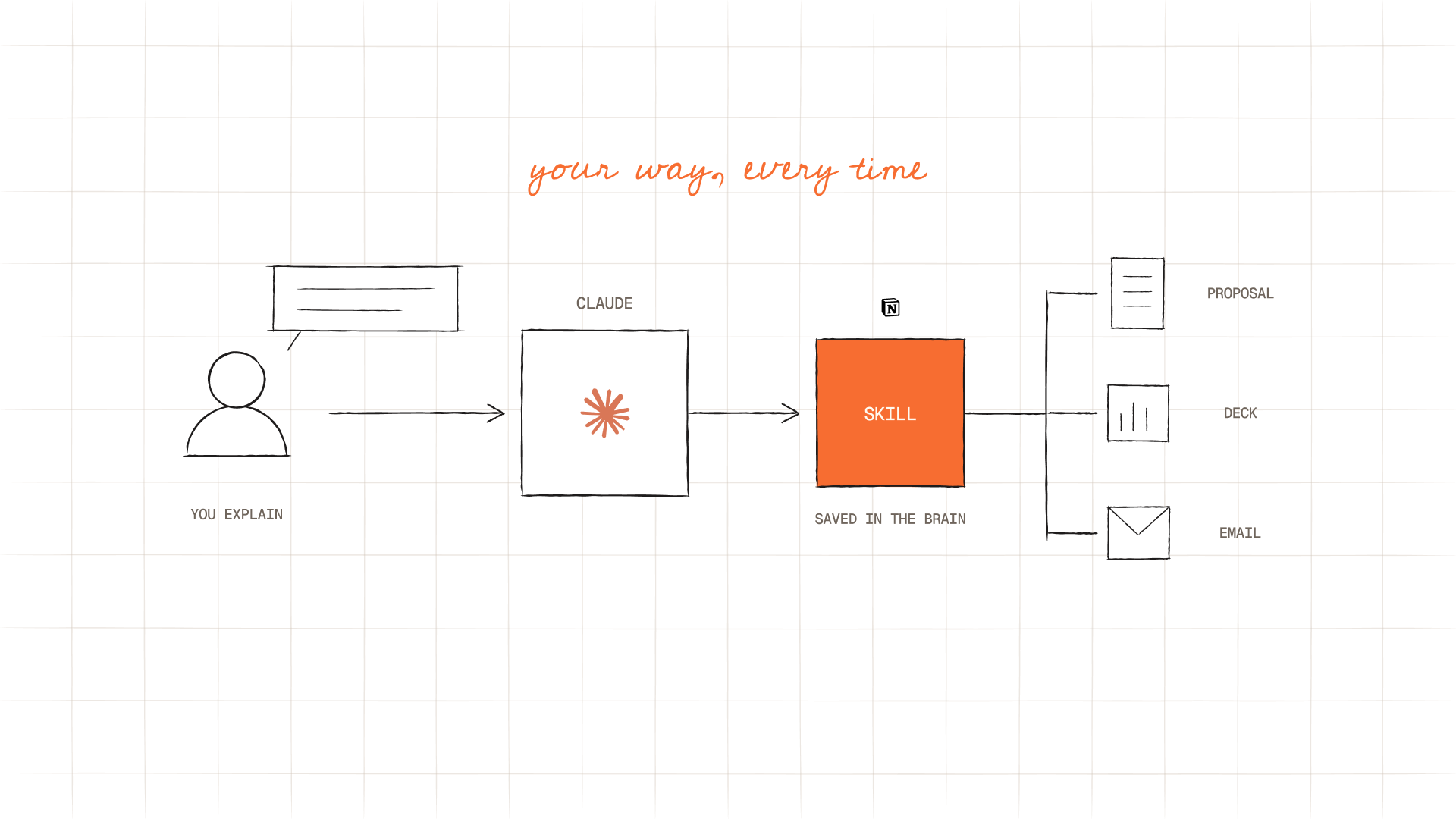
“Skills” sounds technical. It isn’t. A skill is just you explaining how you do something, and Claude saving it so it can do it your way next time.
Whenever you do something Claude could handle next time, talk it through: “Here’s how I write proposals…” Then say: “Save this as a skill in our brain.”
Pick one to start:
- Branded documents and presentations (your logo, colors, fonts, and structure)
- Proposals or quotes
- Client emails in your voice
Tip: Claude can already make decks and documents. A skill makes them yours.
After the setup
What to skip for now
You’ll hear about plugins, agents, custom tools, and coding setups. They’re useful later. You don’t need any of them to get real value today. When you hit a limit, ask Claude what would help. It will tell you.
The daily habit
- Talk, don’t type.
- Start your work in Claude, not in a blank document.
- When Claude gets something wrong, correct it and ask it to save the correction.
- When something works, turn it into a skill.
Where this takes you
This setup won’t make you an AI expert overnight. It does something better: it gets you started. Every task you give Claude teaches you something, and every correction makes your brain smarter.
And when your whole team works from one brain, that’s how a small team ends up doing the work of a much bigger one. It’s happening on my team, and I want the same for you.
Set it up this week. Then hand Claude one real task.
What’s the first task you’re going to give it?
Beta 1.0. I’ll keep updating this guide as the tools change. Something not working? Message me, and I’ll help you get it running.
 Lab Notes · The Ohmy newsletter
Join 1,000+ health and science founders, CMOs and marketers getting AI, marketing and business playbooks.
- Playbooks you can put to work the same week
- Real examples from health & science brands
- The AI setups and tools we use ourselves
Our emails are lab-clean. Unsubscribe anytime.
Ohmy · The team behind Lab NotesSenior strategists and creatives, backed by smart software and AI, plan and run your brand, website, content and ads. You approve the plan. We do the work, with most requests back in 24 to 48 hours.
13 years · 250+ health & science clients
See how Ohmy works
You might also like

Gazizoff is now Ohmy
